Accessing the Users edit screen, there is the possibility to edit, deactivate and delete the Users, in addition to mass actions.
Hovering over the user, the edit and the visualize the access profile options will show up, in addition to deactivate and delete options which are hidden on the three dots on the right side:
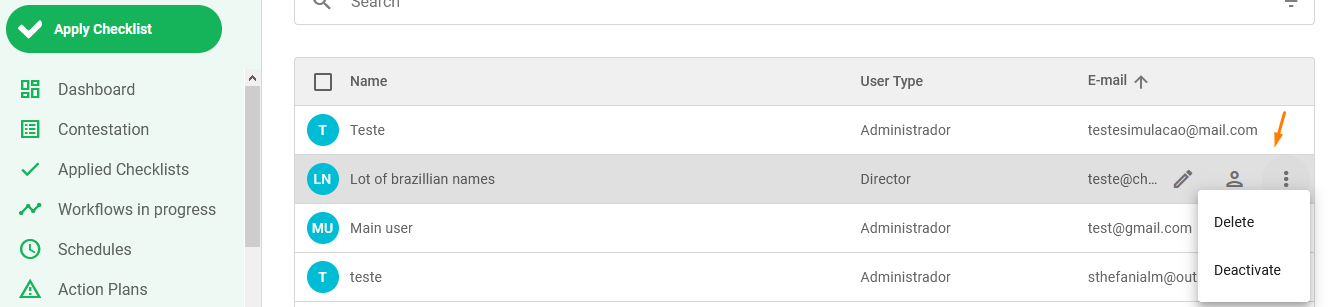
To edit, just click the pencil (edit) icon to access the general data, links and notifications of the user.
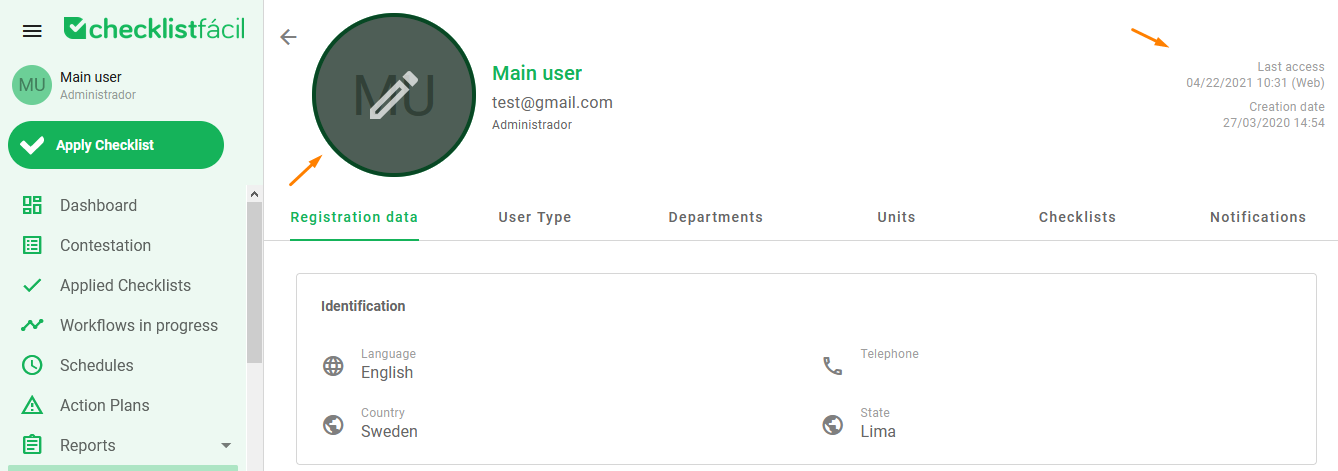
By clicking on the person (access profile) icon, you’ll have access to the profile that gathers all data specified on the user’s registration. Beyond that, it’s possible to check information such as the date and time of the user’s last access, the register date and even set a profile picture:
Bulk actions, on the other hand, are available when selecting one or more users. The actions you can take massively are delete, deactivate and export.
To delete, just click on the trash can icon and, to deactivate, just click the toggle. The export is done by clicking on the cloud icon, where it is possible to download the general data, links with checklists, links with units and links with departments.
By clicking on export, the data will be available to be downloaded on the imports/exports screen, at the footer of left side menu:

Was this article useful? Remember to rate it!
Got questions? Contact us through chat or ticket!
❓Tem dúvidas? Entre em contato com nosso time de suporte.